
Install a modpack on your Minecraft server
There are two ways to run a modpack on your server:
- The pack is on Modrinth or Feed The Beast (FTB). Pick it in the dashboard and the server downloads and installs it for you. This is the easiest way.
- The pack is somewhere else, for example CurseForge. Download its server pack, set the matching loader, and upload the files yourself.
Take a backup before you change the software of a server that already has a world.
Install a Modrinth or FTB modpack
- Open your server and pick Configuration in the side menu.
- In Server software, choose Modrinth modpack or Feed The Beast modpack.
- Search for the pack by name and pick it. You can also type the pack's ID (on Modrinth, the ID or the short name from the pack's web address).
- For an FTB pack you can also fill in FTB pack version ID. Leave it empty to get the pack's latest version.
- Click Save. If the server already had other software, the dashboard asks you to confirm the switch and recommends a backup first (Back up now). Then the server restarts and installs the pack.
The first start of a new pack is slow, because the server downloads every mod and builds its files. A big pack can take several minutes. Follow the progress in Console.
Upload a server pack yourself
Get the server pack, not the client pack
A modpack comes in two versions:
- A client pack is what you install in your launcher. It has client-only mods (shaders, minimaps, animation mods) that a server cannot use, and it lacks the server files.
- A server pack is the version made for a dedicated server. It has the right list of mods and the
config/files the pack needs. Most popular packs publish a separate server download.
On CurseForge, the server pack is usually not behind the big Download button. Open the Files tab and look under Additional Files for an entry whose name ends in Server (or similar):
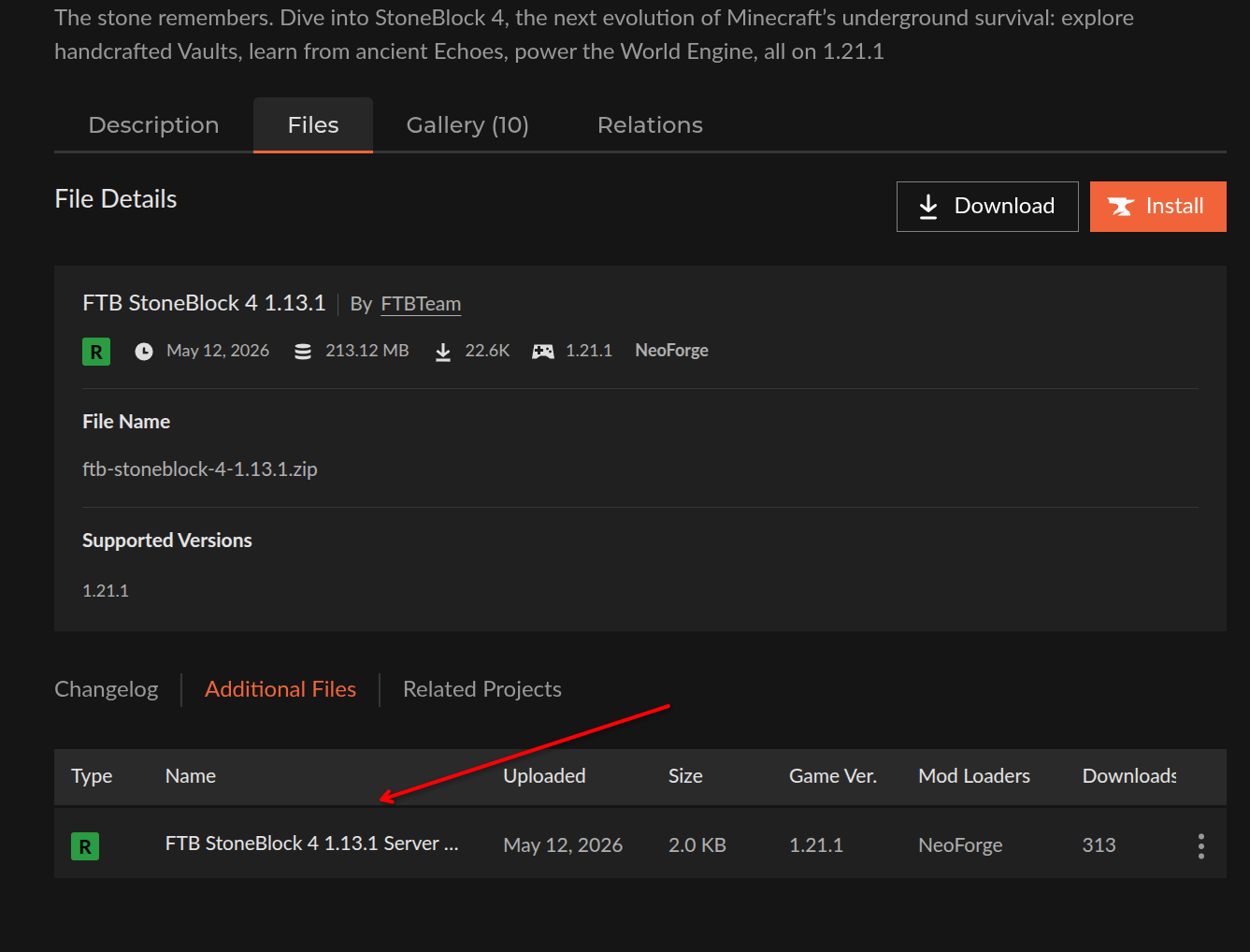
Only a server pack runs on a server. If a pack only has a client version, you need to build a server version yourself: keep the server-compatible mods and remove the client-only ones.
Step 1: match the loader
Before you upload anything, make sure your server runs the same loader and versions as the pack.
- Open Configuration.
- In Server software, pick the pack's loader, for example Forge, NeoForge or Fabric.
- Choose the pack's Minecraft version, and for Forge and NeoForge the Loader version too.
- Click Save. The server restarts to apply the change.
The versions have to match
A pack made for Forge 1.20.1 does not run on a Forge 1.19.2 server. Both the Minecraft version and the loader version must be what the pack expects. Check them on the pack's CurseForge or Modrinth page before you change anything.
Step 2: upload the files
You can use the dashboard file manager or SFTP. For packs bigger than a few hundred megabytes, SFTP is more reliable.
With the file manager
A pack is thousands of small files, so the quickest way is to upload it as one zip and unpack it on the server.
- Stop the server.
- Open Files. Make sure you are in the top folder: you should see
mods/,config/andserver.properties. - If the
mods/folder has mods left over from earlier, delete it. - Click Upload files and upload the server pack as one
.zip. - Right-click the zip and pick Extract.
- If the files went into a subfolder (for example
pack-name/mods/...), movemods/,config/and the pack's other folders up so they sit next toserver.properties. - Delete the zip once the files are in the right place.
Leaving the page stops uploads that are still running, so stay on the page until the upload has finished.
With SFTP
Get the connection details from the SFTP file transfer card on the Data Volume page (see Turn on SFTP and get the password). Over SFTP you see the same folders as in the file manager: the top folder (/) is your server folder, with mods/, config/ and server.properties in it. On some servers they are one level down, inside a server/ folder; if that is all you see, open it.
Stop the server, then copy the pack's mods/, config/ and other folders into the top folder, replacing what is there. SFTP programs do not unpack zip files, so upload the unpacked folders, or upload the zip and unpack it with Extract in the file manager.
What it should look like
Whichever way you used, the top folder of your server should look something like this:
Code
The exact folders depend on the pack. As long as mods/ is in place and the pack's config/ files are there, the server picks them up on the next start.
Step 3: start and watch the console
Start the server. The first start of a new pack is always the slowest, because the loader builds its files and writes default settings. A large pack can easily take three to five minutes to reach "Done".
If the server crashes while starting, open Console and look for the first ERROR line. The most common causes are:
- A missing dependency. The error names the missing mod. Add it to
mods/and restart. - The wrong Minecraft or loader version. The log shows the version that loaded and the version the mod expected. Fix it in Configuration.
- A client-only mod left in
mods/. The error mentions a client class (net.minecraft.client.*). Remove that mod frommods/.
Give the pack enough memory
Heavy modpacks (300+ mods) usually want at least 6 GB of RAM, and some Create or tech packs want 8 GB or more. You can add memory on the Billing page of your server, under Resize Service. An upgrade is billed for the rest of your current billing period.
Going back to vanilla
Open Configuration, choose Vanilla in Server software and save. Delete the mods/ folder (and config/ if you want a clean start). Your world stays, but a world played with mods may not load cleanly without them, so keep a backup.
Frequently asked questions
Can I upload the modpack as one .zip and unpack it on the server?
Yes, in the file manager. Upload the zip, right-click it and pick Extract. This is the easiest way when unpacking on your own computer and uploading thousands of small files would be slow. SFTP programs treat a zip as a normal file, so if you upload it over SFTP, unpack it in the file manager afterwards.
Where do I put a world from single player or another server?
Upload it as the world/ folder in the top folder of your server, replacing the old one. Stop the server first. If the world has separate world_nether/ and world_the_end/ folders (as Paper uses), upload all three.
My pack has its own start script. Will it be used?
No. The server starts with its own start-up, not with a run.sh or start.bat from the pack, and it sets the Java memory from your plan. The tuning flags such scripts often add are available as Optimization flags under Java runtime in Configuration, so you usually do not need the pack's script.
Is my modpack kept if I resize or reinstall the server?
Yes. Everything in your server files (mods, settings, worlds) is kept on the server's storage. Resizing, restarting or reinstalling with Keep my files does not delete it. Reinstalling with Start fresh does.